Keeping your devices updated is one of the simplest ways to improve digital security, but knowing when and how to install updates can sometimes be confusing. A notification appears while you are browsing, a website claims that your browser is outdated, or an unfamiliar window tells you to download an urgent security update. Should you click it?
Not necessarily.
Cybercriminals frequently use fake update notifications to trick people into downloading malicious software, installing unwanted applications, or sharing sensitive information. These messages may look convincing because they imitate familiar operating system alerts, browser notifications, software installers, and security warnings.
At the same time, ignoring every update notification is not a good solution. Genuine updates often contain important security fixes, bug corrections, performance improvements, and compatibility changes. Delaying them for too long can leave your computer or phone exposed to known vulnerabilities.
The better approach is to build a simple device update routine that relies on trusted settings, official application stores, and verified software sources rather than random pop-ups.
This guide explains how to create that routine step by step. You will learn how to check for legitimate updates on Windows, macOS, Android, iPhone, browsers, and everyday applications. You will also discover how to recognize fake update warnings, schedule updates without disrupting your work, and maintain your devices with a practical monthly checklist.
Why Keeping Your Devices Updated Matters
Every operating system, browser, and application contains software components that need maintenance. Developers release updates to fix problems, improve compatibility, and address security weaknesses.
When a vulnerability is discovered, attackers may try to exploit devices that have not received the relevant security fix.
Installing legitimate updates helps reduce this risk.
1. Security Vulnerabilities Get Fixed
A software vulnerability is a weakness that could allow someone to interfere with a device, access information, or perform actions without proper authorization.
For example, a security flaw in a browser could potentially be exploited through a malicious website.
Developers investigate these problems and release security patches when fixes become available.
Installing those patches helps protect your device against vulnerabilities that have already been addressed by the software provider.
However, an update cannot protect against every possible attack. You should still use safe browsing habits, strong authentication, and reliable security software.
2. Updates Improve Software Stability
Sometimes applications crash, freeze, or behave unexpectedly because of bugs.
Updates may correct these problems and improve how software works.
You might notice improvements such as:
- Fewer application crashes
- Better compatibility with newer devices
- Improved connection stability
- More reliable file handling
- Better battery management
- Fixes for previously reported problems
Not every update produces visible changes, but maintenance releases can still be useful.
3. New Features Become Available
Some updates introduce new features or improve existing ones.
For example, an operating system update might add privacy controls, accessibility improvements, interface changes, or new device-management options.
Application updates may also introduce better editing tools, additional settings, and improved workflows.
Security fixes should remain a priority, but feature improvements can also make everyday device use more convenient.
4. Software Compatibility Improves
Older software versions may eventually stop working properly with websites, devices, and online services.
For example, an outdated browser might not support newer website technologies.
An older application may also have problems opening files created by a newer version.
Regular updates help maintain compatibility with supported devices and services.
5. Updates Can Fix Performance Problems
Some software updates address memory usage, background processes, battery consumption, or other performance issues.
However, an update does not always make a device faster. Large operating system upgrades may temporarily use additional storage or resources.
The important thing is to install legitimate updates according to the manufacturer’s guidance rather than expecting every update to improve speed.
Why Random Update Pop-Ups Are Dangerous
A genuine update notification may appear on your screen, but a random pop-up inside a website is not automatically trustworthy.
Attackers often create fake warnings that imitate familiar software brands.
These messages may use alarming language such as:
- Your device is infected.
- Your browser is dangerously outdated.
- Install this update immediately.
- Your security protection has expired.
- Critical system files are missing.
- Your computer will stop working unless you update now.
The goal is to create urgency so that you click without checking the source.
1. Fake Browser Update Pages
A malicious website may display a message claiming that your browser needs an urgent update.
It may show a download button or direct you to an unfamiliar installer.
The page can imitate the appearance of a genuine browser warning, but the download may contain unwanted software or malware.
A safer approach: Close the suspicious page and check for updates through your browser’s built-in settings.
2. Fake Security Alerts
Some websites display warnings claiming that your computer has multiple viruses.
They may show fake scan results, countdown timers, or flashing notifications.
These alerts are designed to frighten visitors into downloading a program or purchasing an unnecessary service.
A website notification cannot automatically be trusted as a genuine security scan of your entire device.
If you suspect a real infection, use the security tools already installed on your operating system or a trusted security provider.
3. Fake Software Installers
Attackers may distribute installers that look similar to popular applications.
A download button may lead to an unofficial website containing a modified installer.
The file might install unwanted programs, change browser settings, or attempt to collect information.
Always download applications and updates from the developer’s official website or a trusted application store.
4. Malicious Notification Permissions
Some websites ask visitors to allow notifications.
After permission is granted, the website may send repeated messages even when the browser is not actively displaying that page.
These notifications can imitate system alerts and promote suspicious downloads.
Only allow notifications from websites you genuinely trust and need.
5. Fake Driver and System Update Tools
Unfamiliar websites sometimes advertise applications that claim to update every driver or system component automatically.
Some may be legitimate commercial products, but others can distribute unwanted software or misleading warnings.
For Windows devices, use Windows Update and the official support pages of your computer manufacturer for driver updates.
Do not install a random driver updater simply because a website says your computer is outdated.
The Golden Rule: Never Update Through an Unverified Pop-Up
The safest update routine begins with one simple rule:
Do not use an unexpected pop-up as your starting point for installing software updates.
Instead, open the relevant settings or application yourself.
For example:
- Windows updates should be checked through Windows Update.
- macOS updates should be checked through System Settings.
- Android updates should be checked through the phone’s Settings app.
- iPhone updates should be checked through Software Update.
- Browser updates should be checked through the browser’s built-in update settings.
- Applications should be updated through their official stores or developer websites.
This approach removes much of the uncertainty surrounding random notifications.
Even if a genuine notification appears, you can independently open the relevant settings and verify whether an update is available.
Build a Simple Device Update Routine
You do not need to check every application several times a day.
A predictable routine is easier to maintain.
The goal is to install important security updates promptly, keep automatic updates enabled where appropriate, and check other software regularly.
Here is a practical schedule for beginners.
Daily: Pay Attention to Important Security Notifications
You generally do not need to manually check for updates every day.
However, pay attention to trusted system notifications that indicate an important security update or restart is required.
When you receive a notification:
- Check which application or operating system produced it.
- Avoid clicking suspicious links.
- Open the relevant settings manually.
- Confirm whether an update is available.
- Follow the official installation instructions.
If an update is marked as urgent by the manufacturer or software provider, prioritize it rather than waiting for your next monthly maintenance session.
Weekly: Check Your Main Devices
Choose one convenient day each week to review your main devices.
For example, you might use Saturday morning or Sunday evening.
During this check:
- Open Windows Update or macOS Software Update.
- Check your phone’s system update settings.
- Review browser updates.
- Open your main application stores.
- Install pending updates.
- Restart devices when necessary.
You do not need to reinstall software that is already current.
Monthly: Review Applications and Device Health
Once a month, perform a slightly broader review.
Check for:
- Applications you no longer use
- Software that is no longer supported
- Pending security updates
- Browser extensions you do not recognize
- Unnecessary notification permissions
- Available storage space
- Important backup status
- Unusual device behavior
Remove software you no longer need, especially applications that you cannot identify or do not remember installing.
After a Security Announcement: Check Immediately
Do not wait for your weekly routine if a trusted provider announces a serious security issue affecting your device or application.
Open the provider’s official website or settings page and check whether a relevant update is available.
Install the fix according to the provider’s instructions.
If no update is available yet, follow any temporary mitigation guidance from the manufacturer or your organization’s IT team.
How to Update Windows Safely
Windows provides a built-in update system that helps keep the operating system current.
You should use this feature instead of downloading update files from unfamiliar websites.
Step 1: Open Windows Settings
On Windows 11:
- Open the Start menu.
- Select Settings.
- Choose Windows Update from the sidebar.
On Windows 10, open Settings and select Update & Security, then Windows Update.
The exact layout may vary depending on your Windows version.
Step 2: Check for Updates
Select the option to check for updates.
Windows will search for available updates and display the results.
Depending on your device, you may see:
- Security updates
- Quality updates
- Feature updates
- Driver updates
- Optional updates
Read the descriptions before installing optional updates.
Step 3: Install Important Updates
Follow the instructions displayed in Windows Update.
Security and quality updates should generally be installed promptly.
Feature updates may involve larger downloads and longer installation times.
If your device is managed by an employer or organization, follow its update policy rather than changing managed settings yourself.
Step 4: Choose an Appropriate Restart Time
Some updates require a restart.
Save your work before restarting.
Windows provides options such as scheduling a restart or configuring active hours, depending on the version and update type.
Use these settings to reduce interruptions.
Step 5: Review Update History
If an update causes problems, you can review your update history through Windows Update settings.
This helps you identify which updates were recently installed.
If an installation fails repeatedly, use Microsoft’s official troubleshooting guidance rather than downloading replacement update packages from random websites.
Should You Install Optional Windows Updates?
Not every optional update is necessary for every user.
Optional updates may include preview quality updates, drivers, or other components.
If your device is working correctly, you can review the description and manufacturer guidance before installing an optional update.
Do not ignore a specific security recommendation simply because an update is marked optional. Check what it contains.
How to Update macOS Safely
Apple provides a built-in process for updating macOS.
You should use System Settings rather than following download links from unfamiliar websites.
Step 1: Open System Settings
Select the Apple menu and open System Settings.
Depending on your macOS version, choose General and then Software Update.
Step 2: Check for Available Updates
Your Mac will check whether a software update is available.
If an update is listed, review its description and follow Apple’s instructions.
Step 3: Review Automatic Updates
macOS includes automatic update settings.
Depending on the version, you may be able to enable automatic checking, downloading, and installation of updates.
Security-related system data and background improvements may have separate settings.
Choose settings that keep your Mac protected while fitting your work schedule.
Step 4: Back Up Important Files
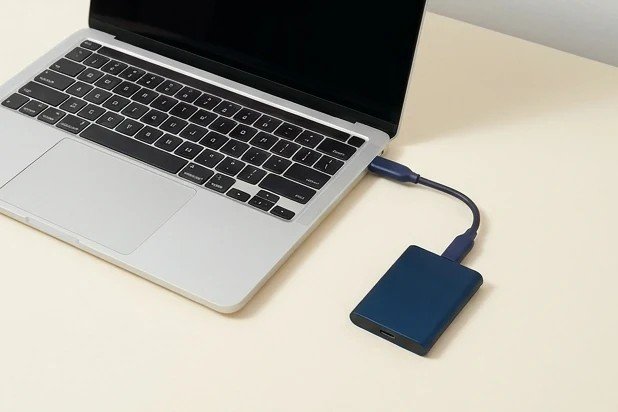
Before a major operating system upgrade, make sure your important files are backed up.
Apple’s Time Machine is one option for backing up a Mac.
A backup can help if you experience an unexpected problem during a major upgrade.
Step 5: Allow the Update to Finish
Keep your Mac connected to power when installing a major update.
Do not force the device to shut down during installation unless Apple provides specific instructions for a recovery situation.
How to Update Android Devices Safely
Android update procedures vary between manufacturers, but the safest starting point is the phone’s Settings app.
Step 1: Open Settings
Unlock your Android phone and open Settings.
Look for a menu such as:
- System
- Software Update
- System Update
- About Phone
The exact name depends on your manufacturer and Android version.
Step 2: Check for System Updates
Select the system update option and follow the instructions.
Your phone may display the current software version and whether a new update is available.
Step 3: Check Google Play System Updates
Some Android security components are updated separately from the main operating system.
Depending on your device, you may find a Google Play system update option in the security or system settings.
Check this section as well.
Step 4: Update Applications Through Google Play
Open the Google Play Store.
Tap your profile icon and look for the option to manage apps and devices.
Review available application updates and install them.
You can also enable automatic app updates in the Play Store settings.
Step 5: Review Manufacturer Updates
Some Android manufacturers provide additional software components and updates through their own official support systems.
Use the manufacturer’s built-in update settings or official support instructions.
Avoid downloading system update packages from unfamiliar websites.
What If Your Android Phone No Longer Receives Updates?
Older devices may eventually stop receiving operating system and security updates.
Check the manufacturer’s official support information to confirm your device’s update policy.
If your phone is no longer supported, consider limiting sensitive activities on it and planning a replacement when practical.
Installing unofficial firmware is not a simple solution for beginners. It can introduce security, compatibility, and warranty issues.
How to Update an iPhone or iPad Safely
Apple provides a built-in Software Update feature for iPhone and iPad.
Use this feature instead of installing update files from websites or unexpected messages.
Step 1: Open Settings
Open Settings on your iPhone or iPad.
Select General and then Software Update.
Step 2: Check for Available Updates
Your device will display whether a new iOS or iPadOS update is available.
Review the update information before proceeding.
Step 3: Enable Automatic Updates
The Automatic Updates section allows you to configure available update options.
Depending on your device and software version, you may be able to enable automatic downloads and installations.
Keeping automatic security-related updates enabled where available can reduce the amount of manual maintenance required.
Step 4: Connect to Wi-Fi and Power
For a large update, use a reliable Wi-Fi connection and make sure the device has sufficient battery power.
Connecting to a charger is a sensible precaution.
Step 5: Back Up Important Information
Before a major upgrade, make sure your important information is backed up.
You can use iCloud or a computer backup, depending on your preference.
Check that the backup completed successfully.
How to Update Your Web Browser Safely
Your browser is one of the most important applications to keep updated because it interacts with websites, downloads, online accounts, and web-based applications.
Use the browser’s built-in update feature.
Google Chrome
To check for updates:
- Open Chrome.
- Select the three-dot menu.
- Open Help.
- Select About Google Chrome.
- Allow Chrome to check for updates.
- Follow any restart instructions.
Chrome may automatically download updates in the background.
Mozilla Firefox
To check for updates:
- Open Firefox.
- Select the menu button.
- Open Help.
- Select About Firefox.
- Allow Firefox to check for updates.
- Restart the browser if requested.
Microsoft Edge
To check for updates:
- Open Edge.
- Select the three-dot menu.
- Open Help and feedback.
- Select About Microsoft Edge.
- Follow the displayed update instructions.
Apple Safari
Safari updates are generally delivered through Apple’s software update process.
Check Software Update in macOS System Settings and install available updates.
Why Browser Updates Matter
Browsers process large amounts of potentially untrusted content.
They handle:
- Websites
- JavaScript
- Images
- Videos
- Downloads
- Online forms
- Extensions
- Web applications
Security vulnerabilities in browsers can create opportunities for attackers.
Keeping your browser current helps reduce exposure to known issues.
How to Update Applications Without Installing Fake Software
Your operating system and browser are only part of the update process.
Applications also need regular maintenance.
The safest update source depends on how you installed the application.
Applications Installed Through an Official Store
If you installed an application through an official store, use that same store to update it.
Examples include:
- Microsoft Store
- Apple App Store
- Google Play Store
Open the store, review available updates, and install the versions you need.
Applications Downloaded From Official Websites
Some desktop applications are distributed directly through their developers’ websites.
In that case:
- Open the application.
- Look for its built-in update option.
- If necessary, visit the developer’s official website manually.
- Confirm the website address.
- Download the latest supported version.
- Follow the installation instructions.
Avoid downloading installers from unfamiliar file-sharing websites.
Applications That Have Their Own Updaters
Some software includes a separate update service.
If the application is from a trusted developer and you installed it from an official source, follow its documented update process.
If you are unsure whether a notification is genuine, close it and check the application manually.
How to Recognize a Fake Update Notification
Fake update messages can be convincing, but several warning signs can help you identify them.
1. The Alert Appears Inside a Website
If a message appears inside a webpage rather than your operating system’s normal settings interface, treat it cautiously.
A website can display almost any message it wants.
Close the page and check the software’s official update settings.
2. It Uses Extreme Language
Messages that threaten immediate damage, account deletion, or permanent device failure are common scare tactics.
Examples include:
- Your computer will be permanently damaged.
- Your personal files are at risk.
- You must install this file within 60 seconds.
- Your device has been blocked.
Do not let a countdown or alarming message rush your decision.
3. It Requests Payment for a Basic Update
Operating system security updates are normally distributed through the relevant manufacturer’s update process.
A random webpage asking for payment to install a supposed critical Windows, Android, or browser security patch is a major warning sign.
Close the page and verify the update independently.
4. It Asks You to Install an Unknown Application
Be careful if a notification tells you to install a program you have never heard of.
Research the developer and verify the download source before installing anything.
5. It Uses an Unfamiliar Website Address
A page may imitate a known company while using a completely different domain.
Check the actual website address rather than relying on its logo or design.
A padlock or HTTPS connection alone does not prove that a website is legitimate.
6. It Requests Remote Access
A supposed update warning may ask you to install remote-access software or give someone control of your device.
Do not provide remote access to an unknown person.
If you need technical support, contact the manufacturer or your organization’s IT department through an independently verified channel.
What to Do If You Accidentally Click a Fake Update Pop-Up
Clicking a suspicious notification does not always mean your device has been infected.
The next steps depend on what happened.
Situation 1: You Opened the Page but Did Not Download Anything
Close the suspicious browser tab.
Do not click additional buttons.
If the page repeatedly appears, review your browser’s notification permissions and remove the suspicious website.
You can also clear the website’s stored permissions through your browser settings.
Situation 2: You Downloaded a File but Did Not Open It
Do not run the downloaded file.
Delete it using your operating system’s normal file-management tools.
If you are uncertain whether it executed automatically or was opened, run a scan with your trusted security software.
Situation 3: You Installed an Unknown Program
Disconnect from the internet if you suspect active malicious activity.
Use a trusted security application to scan the device.
Review recently installed applications and remove suspicious software through your operating system’s normal uninstall process when safe to do so.
If the device contains important work or financial information, consider getting help from a qualified technician.
Situation 4: You Entered Your Password
If you entered a password into a suspicious website, change it immediately through the genuine service’s official website.
If you reused that password elsewhere, change it on every affected account.
Enable multi-factor authentication and review active sessions.
If you entered financial information, contact your bank or payment provider through its official contact channels.
Situation 5: You Allowed Remote Access
If you gave an unknown person remote access to your device, disconnect the device from the network.
Use a separate trusted device to change important passwords and contact your bank if financial information may have been exposed.
Seek professional assistance to check the affected device.
Automatic Updates: Should You Enable Them?
Automatic updates can make device maintenance easier.
Instead of remembering to check every application manually, your device can download and install supported updates automatically.
For most everyday users, automatic security updates are a sensible choice.
However, you should understand the settings and possible interruptions.
Benefits of Automatic Updates
- Security fixes can be installed sooner.
- You are less likely to forget important updates.
- Applications remain more current.
- Maintenance requires less manual effort.
- Some compatibility problems are corrected automatically.
Possible Disadvantages
- Updates may restart a device.
- A large download may use mobile data.
- A new release may introduce a bug.
- Updates may temporarily affect application compatibility.
- Major upgrades may require more storage space.
These disadvantages can usually be managed through appropriate scheduling and backup habits.
A Practical Automatic Update Strategy
Consider using the following approach:
Operating system: Keep automatic security and quality updates enabled where practical.
Browsers: Allow automatic updates through their built-in settings.
Mobile applications: Enable automatic updates over Wi-Fi if that suits your data plan.
Major operating system upgrades: Review the release information and backup status before installing, particularly on work-critical devices.
Business devices: Follow your organization’s update policy and testing schedule.
The goal is not to install every update immediately without thinking. It is to make sure important fixes are not forgotten.
How to Schedule Updates Without Interrupting Your Work
An update routine should fit into your daily schedule.
If updates constantly interrupt your work, you may start ignoring them.
A few simple adjustments can make the process easier.
Use Active Hours
Windows provides active-hours settings that help reduce unwanted restarts during your usual working time.
Configure these settings according to your routine.
Choose a Weekly Maintenance Window
Select a regular time when you are less likely to need your device.
For example, you might use Sunday evening to check updates on your computer and phone.
Keep Devices Connected to Power
Major operating system updates can take time.
Connect laptops and phones to a reliable power source when installing large updates.
Save Your Work Before Restarting
Always save open documents and close important applications before restarting.
Do not assume that an update will automatically preserve every unsaved file.
Avoid Updating During Critical Work
If you have a presentation, client meeting, examination, or important deadline, avoid beginning a major upgrade immediately beforehand.
However, do not indefinitely delay an urgent security fix. Find a safe maintenance window as soon as possible.
Back Up Your Data Before Major Updates
Although most routine updates install successfully, unexpected problems can occur.
A backup gives you another way to access important information if something goes wrong.
What Should You Back Up?
Prioritize:
- Important documents
- Personal photographs
- Videos
- Work projects
- Financial records
- Website files
- Important configuration information
- Other files that would be difficult to replace
Use a Trusted Backup Method
Depending on your device, you might use:
- Windows Backup
- File History
- OneDrive
- macOS Time Machine
- iCloud
- An external hard drive
- A reputable backup service
Choose a method that fits your needs and understand whether it protects files, system settings, or the entire device.
Verify Your Backup
Do not assume a backup is working simply because you enabled it.
Check the backup status and make sure important files are included.
When practical, test restoring a small file.
A backup that cannot be restored is not a reliable recovery plan.
Keep Important Backups Separate
For important data, avoid relying on a single copy stored on the same device.
A separate external drive or trusted cloud backup can help protect against device failure, accidental deletion, and certain malware incidents.
What to Do When an Update Fails
Sometimes an update will not install.
You may see an error message, a failed download, or a repeated restart.
Do not immediately download an alternative installer from an unfamiliar website.
Follow a safe troubleshooting process.
Step 1: Check Your Internet Connection
A weak or unstable connection can interrupt downloads.
Try a reliable network and repeat the update check.
Step 2: Check Available Storage
Updates may require additional temporary storage.
Remove unnecessary files or applications if your device is running low on space.
Do not delete system files simply to create room.
Step 3: Restart Your Device
A normal restart can resolve temporary software problems.
Save your work first.
Step 4: Check the Error Message
Record the exact error code or message.
Use the operating system manufacturer’s official support documentation to understand the problem.
Step 5: Use Built-In Troubleshooting Tools
Windows and other operating systems provide update troubleshooting features.
Use the tools recommended by the manufacturer.
Step 6: Avoid Unofficial Fixes
Do not run commands or install repair utilities from unknown websites simply because they promise to fix an update error.
If the problem continues, contact the manufacturer’s support team or a qualified technician.
Special Update Considerations for Work and Business Devices
If you use a device for work, updating it requires a little more planning.
An update that affects a business application or specialized driver could interrupt important tasks.
However, leaving devices unpatched can also create security problems.
Follow Your Organization’s Update Policy
Work devices may be managed by an IT department.
The organization may control:
- Update installation dates
- Approved software versions
- Device restarts
- Security settings
- Application compatibility
- Driver updates
Do not bypass these controls without permission.
Test Major Updates Where Necessary
Businesses that rely on specialized applications may need to test major upgrades before deploying them across all devices.
This is particularly important for systems used in accounting, design, healthcare, manufacturing, and other specialized environments.
Keep an Inventory of Important Software
Maintain a list of the applications your team relies on.
Record:
- Application name
- Developer
- Installed version
- Update method
- Support status
- Responsible team member
This makes it easier to identify outdated software.
Remove Access When Devices Are Retired
When an employee leaves or a device is replaced, review stored accounts and access permissions.
Make sure old devices are properly signed out, wiped, or retired according to the organization’s security policy.
Build a Monthly Device Maintenance Checklist
A checklist helps turn update management into a repeatable habit.
You can use the following routine once a month.
Operating System
- Check Windows Update or macOS Software Update.
- Check Android or iPhone system updates.
- Install important security updates.
- Review failed or pending installations.
- Restart devices when required.
Browsers
- Check Chrome, Firefox, Edge, or Safari.
- Install available browser updates.
- Remove unfamiliar extensions.
- Review website notification permissions.
- Check for suspicious browser behavior.
Applications
- Update important desktop applications.
- Review available mobile app updates.
- Remove software you no longer use.
- Check whether essential applications are still supported.
- Confirm that downloads came from trusted sources.
Security
- Review security software status.
- Check multi-factor authentication on important accounts.
- Review recent security notifications.
- Remove unknown applications.
- Check active device sessions where appropriate.
Backups and Storage
- Confirm that important files are backed up.
- Check backup completion status.
- Review available storage space.
- Remove unnecessary downloads.
- Confirm that important files can be restored.
A Simple Weekly Update Routine You Can Follow
If you prefer a fixed schedule, use this example.
| Day | Task | Time needed |
|---|---|---|
| Monday | Review important security alerts | 5 minutes |
| Wednesday | Check browser and application updates | 10 minutes |
| Saturday | Check computer and phone updates | 15 minutes |
| Sunday | Review backups and storage | 10 minutes |
These are suggested time estimates, not guaranteed durations. Large updates or slow internet connections may require more time.
You can adjust the schedule to fit your devices and work habits.
The most important thing is consistency.
Frequently Asked Questions
1. Is it safe to click update pop-ups?
Not every update pop-up is dangerous, but unexpected messages should be treated cautiously.
Instead of clicking a download button, open your device’s settings or the application’s built-in update section and check manually.
2. How often should I update my devices?
Enable automatic security updates where appropriate and check your main devices regularly.
A weekly review is a useful routine for most people, while urgent security updates should be addressed sooner.
3. Can fake update pop-ups infect my computer?
A fake pop-up may try to convince you to download and install malicious software.
Simply seeing a suspicious page does not automatically mean your device is infected. The risk increases if you download or execute a file, grant permissions, or enter sensitive information.
4. How do I know if a Windows update is genuine?
Open Settings and select Windows Update.
Updates shown through this built-in feature are the appropriate starting point for checking Windows updates.
Avoid downloading supposed system patches from unfamiliar websites.
5. Should I enable automatic updates?
For most personal devices, enabling automatic security updates is a sensible choice.
Configure restart times and data settings to reduce interruptions.
6. Are browser update notifications safe?
Genuine browser update notifications can be legitimate, but website pop-ups that claim your browser is outdated should not be trusted automatically.
Use the browser’s built-in About or update settings to verify its version.
7. What should I do if a website says my phone has a virus?
Do not download the suggested application or follow the website’s instructions.
Close the page and use your phone’s trusted security and application-management settings to investigate.
8. Do I need to update applications separately?
Yes, operating system updates do not necessarily update every application.
Check your official application stores or the developer’s update process for desktop software.
9. Can I update my device without Wi-Fi?
Some devices allow updates through mobile data, but large downloads may consume a significant amount of your data allowance.
Check your device settings and mobile plan before downloading a large update.
10. Should I update immediately when a new version appears?
Security updates should generally be prioritized.
For major feature upgrades, review the release information, compatibility, and backup status before proceeding.
If the manufacturer identifies a critical security issue, follow its instructions promptly.
11. What if my device does not have enough storage?
Remove unnecessary files and applications, transfer large personal files to a trusted backup location, and follow the manufacturer’s storage recommendations.
Do not delete unfamiliar system files.
12. Can an update damage my device?
Most official updates are designed and tested to work on supported devices.
However, installation problems and software bugs can occur.
Back up important information before major upgrades and use official installation methods.
13. Should I install driver updates from random websites?
No.
For Windows, use Windows Update or the official support website of your device manufacturer.
Avoid unknown driver updater applications and unofficial driver downloads.
14. What happens if I ignore security updates?
Your device may remain exposed to known vulnerabilities that have already been fixed in newer software versions.
This can increase the risk of attacks, particularly when you use outdated browsers, operating systems, and applications online.
15. How do I remove fake browser notifications?
Open your browser’s settings and find the website permissions or notification settings.
Review the allowed websites and remove permissions for unfamiliar or suspicious sites.
The exact steps vary by browser.
16. Is antivirus software enough to protect an outdated device?
No.
Security software can help detect certain threats, but it cannot replace operating system and application security updates.
Keep both your device software and security protection current.
17. What should I do before a major operating system upgrade?
Back up important files, check available storage, review compatibility information, connect your device to power, and choose a suitable installation time.
18. How can I check whether an application is still supported?
Visit the application’s official website or support documentation.
Look for its latest release information, supported operating systems, and end-of-support announcements.
19. Are updates from official application stores always safe?
Official stores provide an important layer of distribution and review, but they do not guarantee that every application is harmless.
Check the developer, permissions, reviews, and purpose before installing software.
20. What is the safest way to manage updates on multiple devices?
Enable automatic security updates where practical, use built-in update settings, maintain a weekly review schedule, and keep a record of devices that need manual attention.
For work devices, follow the organization’s update policy.
Final Thoughts
Keeping your devices updated does not need to be complicated. The real challenge is knowing which notifications to trust and where to get genuine updates.
Random pop-ups, unfamiliar download buttons, urgent security warnings, and unexpected installer messages should never be your default source for software updates.
Instead, use the update settings built into Windows, macOS, Android, and iOS. Update browsers through their own settings, and install applications through official stores or verified developer websites.
Create a simple weekly maintenance routine, enable automatic security updates where appropriate, and back up important files before major upgrades.
If an update warning appears while browsing, do not rush to click it. Close the message, open the relevant application or system settings yourself, and check whether an update is actually available.
A consistent routine helps you avoid suspicious downloads, reduce exposure to known security vulnerabilities, and keep your devices working reliably without depending on random pop-ups.